Please use “bolt://realonline.imareal.sbg.ac.at:7687” as the “Connect URL” and select “No authentication” in the “Authentication type” field.
What is meant by descriptions in REALonline?
Descriptions contain all elements that may be depicted in an image: subjects, objects, clothing, animals, plants, actions and (historical) locations. REALonline also records the status, occupation or age of depicted persons or figures, their gender and their gestures or posture. For objects, clothing, animals and plants, REALonline records the colour, material (if recognisable) and shape. You can refine your search for all these criteria using the description facet (see also ‘How do the facets in REALonline work?’). You can also use the thesaurus facet to browse a tree structure of these fields for a ‘browsing’ search of the description data.
Descriptions in REALonline are recorded using a predefined structure and controlled vocabulary. They therefore differ from what is commonly understood as image description in many places.The sequence of image elements in the structured descriptions generally follows the criterion: from left to right, from top to bottom in the image – whereby the main motifs/protagonists are listed first and the background elements are listed in a second pass.
What is meant by a ‘work of art’ in REALonline?
The works-of-art facet collects all metadata relating to the image carrier/object. In addition to the subject of the image, artist, location, preserving institution and date, this includes information on the physical characteristics: material, technique, dimensions and object type. Furthermore, information is collected on whether the object belongs to a larger ensemble. You can refine your search using these criteria via the works-of-art facet. You can also use the tree structure of these fields in the thesaurus facet to browse through the content.
How do the facets work in REALonline?
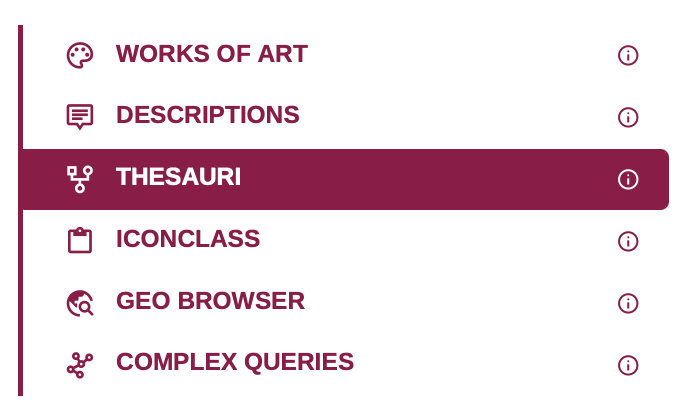
At the top left, below the free text search field, there are filters for ‘Works of art’, ‘Descriptions’, ‘Thesauri’, ‘Iconclass’ and ‘Geobrowser’. When you click on one of these filters, a bar with facets opens on the left side of the screen. You can use these to further narrow your search or expand the results.
What is the thesaurus search used for?
The thesaurus search is particularly helpful
1. … if you do not know which term is used in REALonline for a term you are searching for.
2. … if you want to search for a higher-level category.
The following examples explain what this means in concrete terms and how you can proceed in both cases.
In the first case, for example, you searched for ‘cushions’ in the free text field but did not get any results. Assuming (correctly) that cushions were recorded as image elements in the REALonline data, you can continue your search using the thesaurus provided. To do this, click on the ‘Thesauri’ filter (see image).
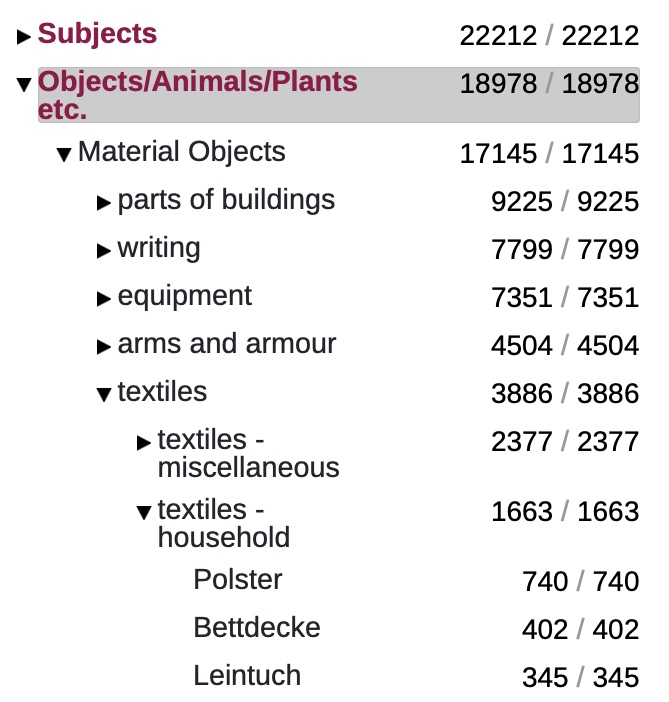
This opens the thesaurus facet with all thesauri available in REALonline. If you now click on the arrow in front of Objects/Animals/Plants etc., the subordinate levels of this thesaurus are displayed. Further clicks on the arrows open further subordinate levels. (see image)
You have now worked your way through Objects/Animals/Plants etc. > Material Objects > Textiles > Textiles – Household and now have a manageable list of terms assigned to the category Textiles – Household. Among them you will also find the term ‘Polster’, which is the more common term for cushions in Austria.
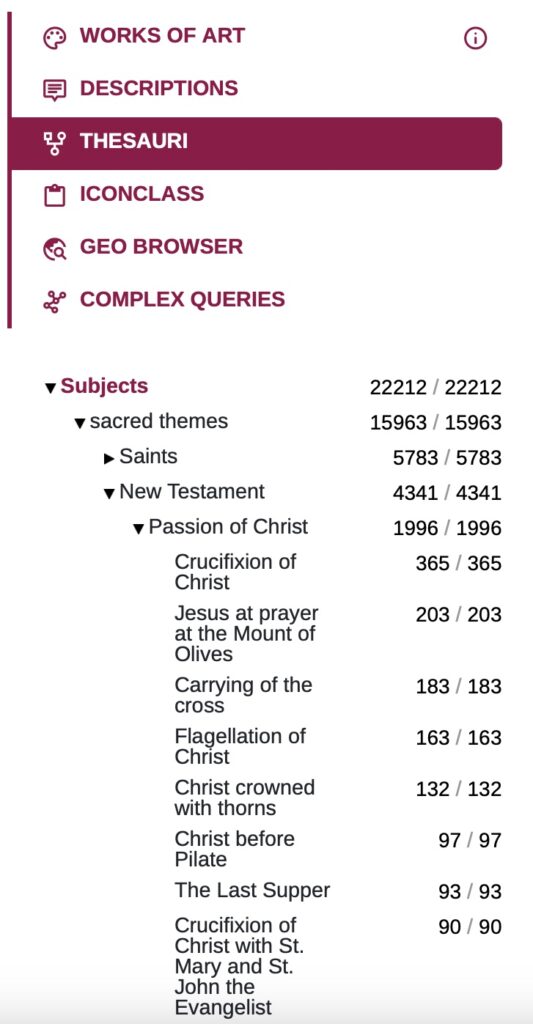
In the second case, you can use a higher-level category for your search. This is helpful if, for example, you want to use REALonline to search for stools depicted in Passion scenes. To do this, you can now open subcategories of the Subject thesaurus. (see image)
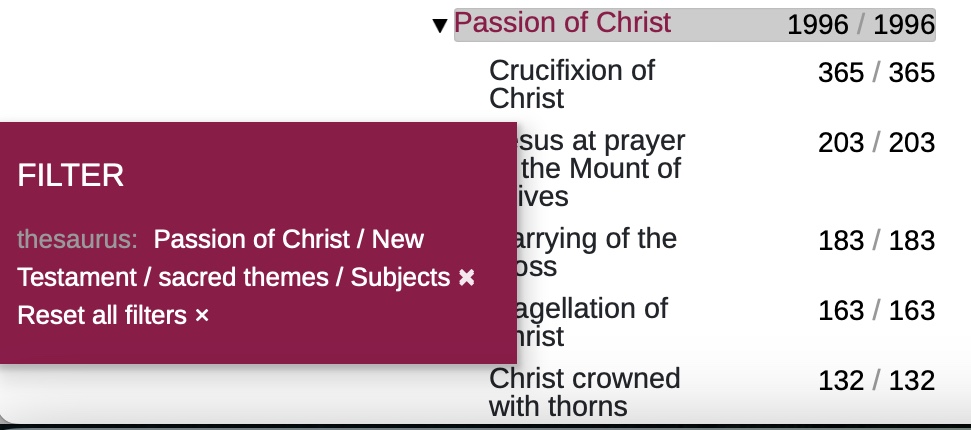
By clicking on the higher-level category ‘Passion of Christ’, you can use this as a search filter. The path you have selected in the thesaurus now appears in the filter box: Thesaurus: Passion of Christ < New Testament < sacred < subjects. (see image)
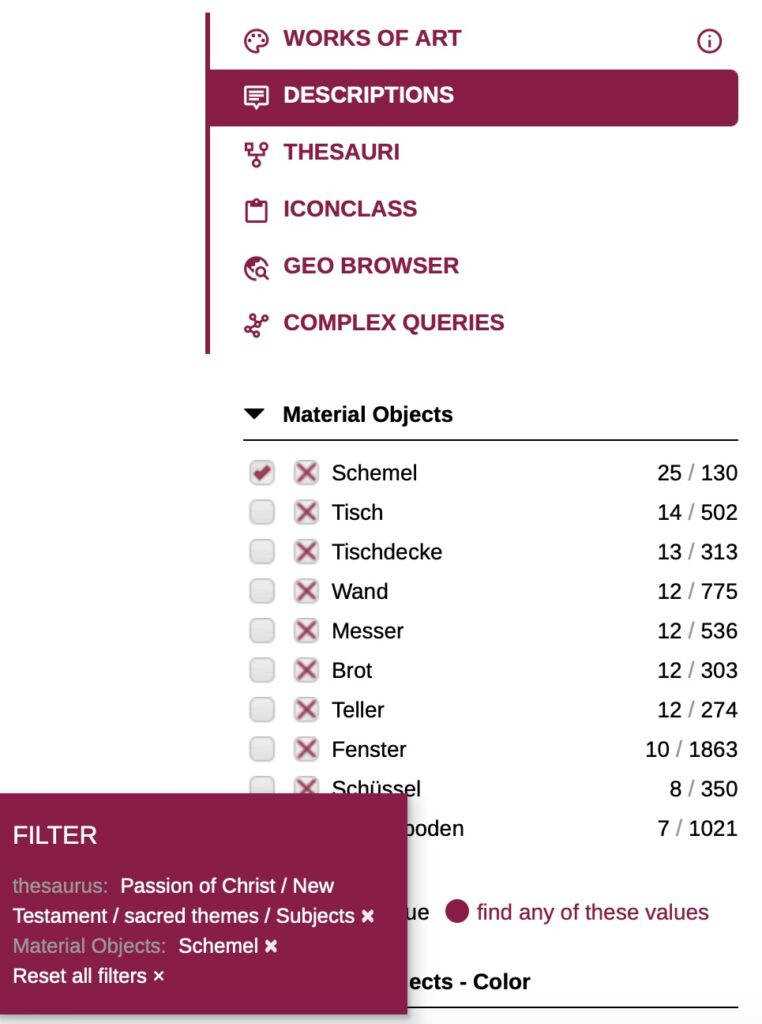
You can now use the free text field or the Material Objects facet (in the ‘Descriptions’ filter category) to further narrow your search to those works of art that also feature a stool. This search restriction will then also appear in the filter box. (see image)
You can remove the search restriction(s) by clicking on the x symbol in the filter box below. Please do not hesitate to contact us if you have any questions.
How can I find a manuscript by its signature or a work of art by its inventory number?
If you know the signature or inventory number, you can enter it in the free text field of the search. (To the right of the free text search field, select ‘Works of art’ or ‘Everything’.)
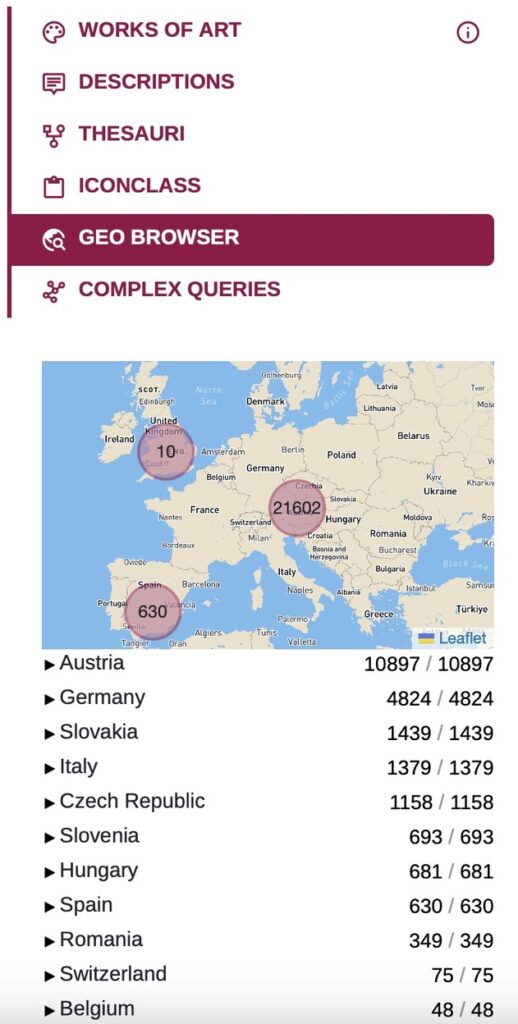
Another option is to filter by country in the geobrowser and then by location and institution. This will list all signatures/inventory numbers that have been recorded at an institution (see image).
I don’t know which term is used for a specific iconographic subject. What now?
You can browse the “Subject”-tree in the Thesaurus facet.
Do you know a person/figure, object or action that definitely appears in the iconographic subject you are looking for? In this case, it is helpful to look at the facets that open when you select the ‘Descriptions’ filter. Try to refine your search accordingly.If you are familiar with the ICONCLASS notation for the iconographic theme, you can find it either by entering it in the free text field of the search or by using the ICONCLASS filter. Another option is to search for a suitable notation in the ICONCLASS browser and enter it on REALonline.
What is the graph view?
By default, the graph view is displayed when a data set is shown in full view. A graph consists of nodes (the coloured circles) and edges (the connections between the nodes). The legend explains which colour represents which category of nodes. When you move the cursor over a node or edge, the data is displayed in the info box.